
The first thing I check on any new client’s WordPress site is not their content or their backlinks. It is how many analytics plugins they have active. My record is five: Site Kit, MonsterInsights, a “header scripts” plugin with an old code pasted in, an Analytics option switched on inside their theme, and Tag Manager, all firing at once. Their dashboard showed double the visitors they really had and a bounce rate near zero, and they had been making decisions on that fiction for a year. Nobody had done anything stupid; they had followed five different tutorials, each of which said “just install this plugin.” This guide is the opposite of that. You will connect Google Analytics 4 and Search Console to your WordPress site using exactly one path out of three, you will know why you chose it, and you will finish with a five-minute check that proves your numbers are real. Total time: about fifteen minutes plus one coffee while verification goes through.
Create your free GA4 property at analytics.google.com and your free Search Console property at search.google.com/search-console. Then add them to WordPress through one path: Path A, the official Site Kit by Google plugin, which connects both tools in a single sign-in (easiest); Path B, the SEO plugin you already have (Rank Math or Yoast) for Search Console verification plus one lightweight snippet for the GA4 tag (lightest); or Path C, Google Tag Manager (most powerful, and what we teach in the full analytics guide). Submit your sitemap, then run the double-tracking check: your GA4 ID should fire from exactly one place. One tag, real numbers, done.
• Both tools are free, forever: GA4 shows what visitors do on your site; Search Console shows how Google finds it, including the exact queries you rank for
• Site Kit, Google’s official WordPress plugin, runs on millions of WordPress sites and connects Analytics, Search Console and more in one sign-in
• WordPress powers about 43% of the web, which is why every tracking tool ships a WordPress route, and why sites end up with four of them at once
• Double-installed tags double your pageviews and crush your bounce rate, quietly corrupting every decision you make from the data
• A site with no Search Console cannot see indexing errors, and a site with no GA4 cannot count leads: flying blind twice
1. What GA4 and Search Console Actually Do
Two free Google tools, two different questions. Google Analytics 4 (GA4) answers “what happens on my site?”: how many people visited, which pages they read, where they came from, and, once you set it up properly, how many filled your enquiry form or tapped your WhatsApp button. Google Search Console (GSC) answers “how does Google see my site?”: which searches you appear for, your clicks and average position, whether your pages are indexed at all, and any errors blocking them.
Together they are the difference between a website and a marketing tool. Every step of the SEO checklist assumes you can see GSC data, and every rupee you ever spend on ads assumes GA4 can count what the clicks did. This post covers the WordPress installation cleanly; for what the reports mean and the full Tag Manager event setup, the GA4, Search Console and Tag Manager guide is the deep dive. If your site is on WordPress.com’s free plan rather than self-hosted WordPress, some of these options are locked; the WordPress.com vs WordPress.org guide explains the difference in five minutes.
Before anything in WordPress, create the two properties (both take minutes): at analytics.google.com, create an account and a GA4 property with a Web data stream for your site; note your Measurement ID, which looks like G-XXXXXXX. At search.google.com/search-console, add a property; leave the browser tab open, because verification happens after your WordPress step.
2. Why Plugin Chaos Happens (And the 2-Minute Audit)
Here is how a normal person ends up with five analytics plugins. Tutorial one says “install Site Kit.” Tutorial two, a year later, says “install MonsterInsights for better reports.” The theme’s setup wizard offers an “Add your Analytics ID” box, so they paste it there too. A freelancer once added a header-scripts plugin with the code. Then someone recommends Tag Manager. Each step was reasonable; the sum is a site where the same visit is counted two, three or four times.
The damage is worse than clutter. Every duplicate tag inflates pageviews, makes bounce rate collapse toward zero (the second tag “proves” instant engagement), slows the site with repeated script loads, and makes every future debugging session a treasure hunt. And because the numbers look good, wrong, nobody questions them.
Run this 2-minute audit before installing anything. First, Plugins > Installed Plugins: note anything with “analytics,” “insights,” “statistics,” “pixel,” “tag” or “header scripts” in the name. Second, Appearance > Customize (or your theme’s options panel): look for an Analytics or Integrations section with an ID pasted in. Third, open your site, right-click, View Page Source, and press Ctrl+F for G- and gtag. If your Measurement ID appears in more than one block, or you find IDs you do not recognize, you have found the chaos. Clean first: keep nothing, because you are about to install one clean path from scratch.
3. Pick Your Path: The Only Decision That Matters
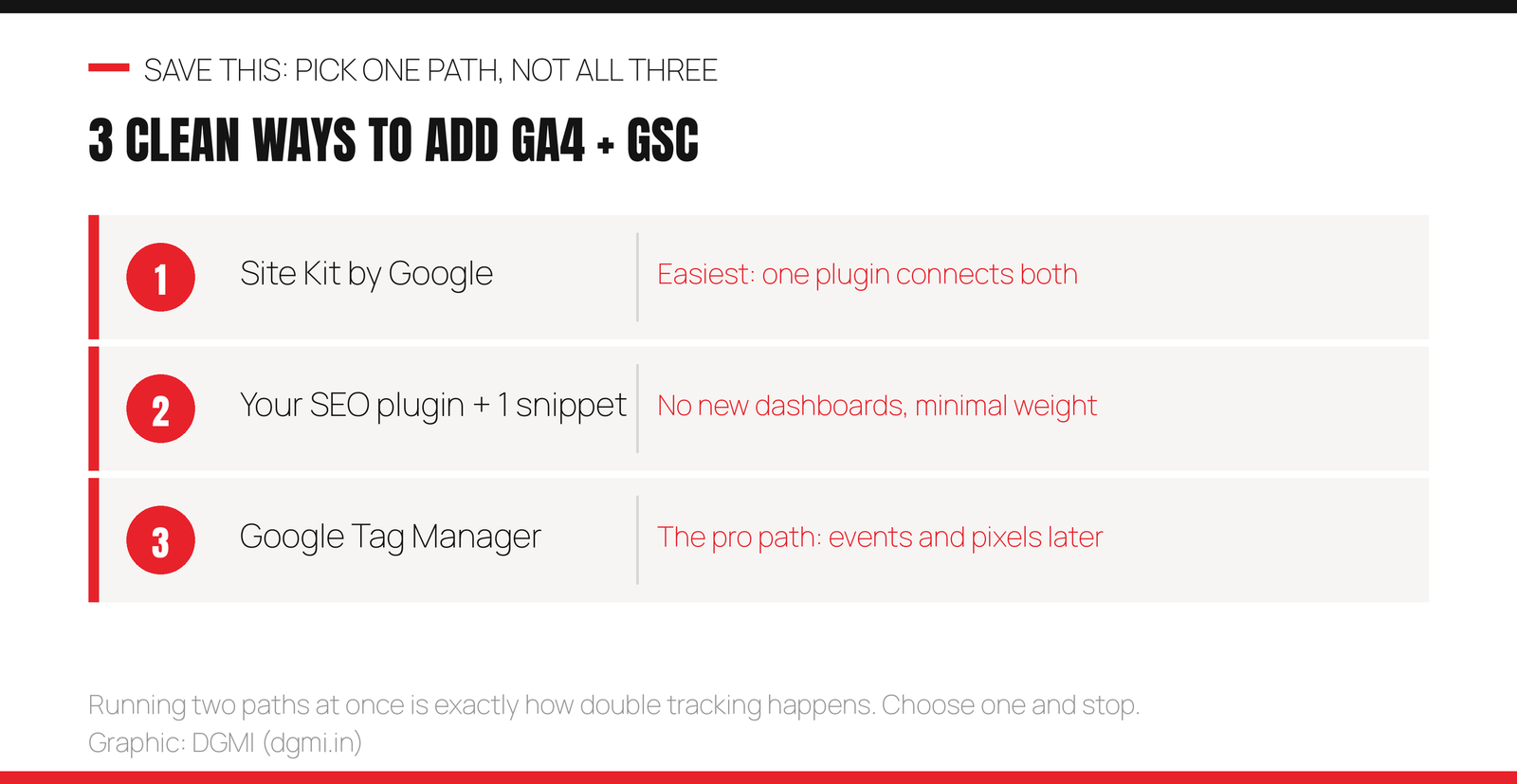
Path A: Site Kit by Google. The official Google plugin. One sign-in connects Search Console and GA4, verification happens automatically, and you get basic reports inside WordPress. Choose it if you want the shortest, most supported route and do not mind one more plugin. Its honest trade-off: it is a fairly heavy plugin for what it does, and it gives you less control over events.
Path B: your SEO plugin plus one snippet. If you already run Rank Math or Yoast (and after our Astra tutorial, you do), it can verify Search Console with one pasted value, no new plugin. For GA4, you add the small gtag snippet through your theme’s custom-code hook or one lightweight snippet plugin (WPCode is the common choice). Choose it if you want minimum weight and no new dashboards. Trade-off: two small manual steps instead of one wizard.
Path C: Google Tag Manager. One GTM container in your site; GA4, WhatsApp click tracking, form events, and any future pixel (Meta, LinkedIn) all live inside it, added without touching WordPress again. This is what we install on client sites and teach students, because it scales. Choose it if you plan to track leads seriously or run ads eventually. Trade-off: one extra concept to learn on day one, which is exactly what the full analytics guide teaches screen by screen.
Whichever you pick, the rule is the same: one path, then stop. Do not “also” install a second one for the nicer dashboard. That is the chaos, arriving politely.
4. Path A: Site Kit by Google, Step by Step
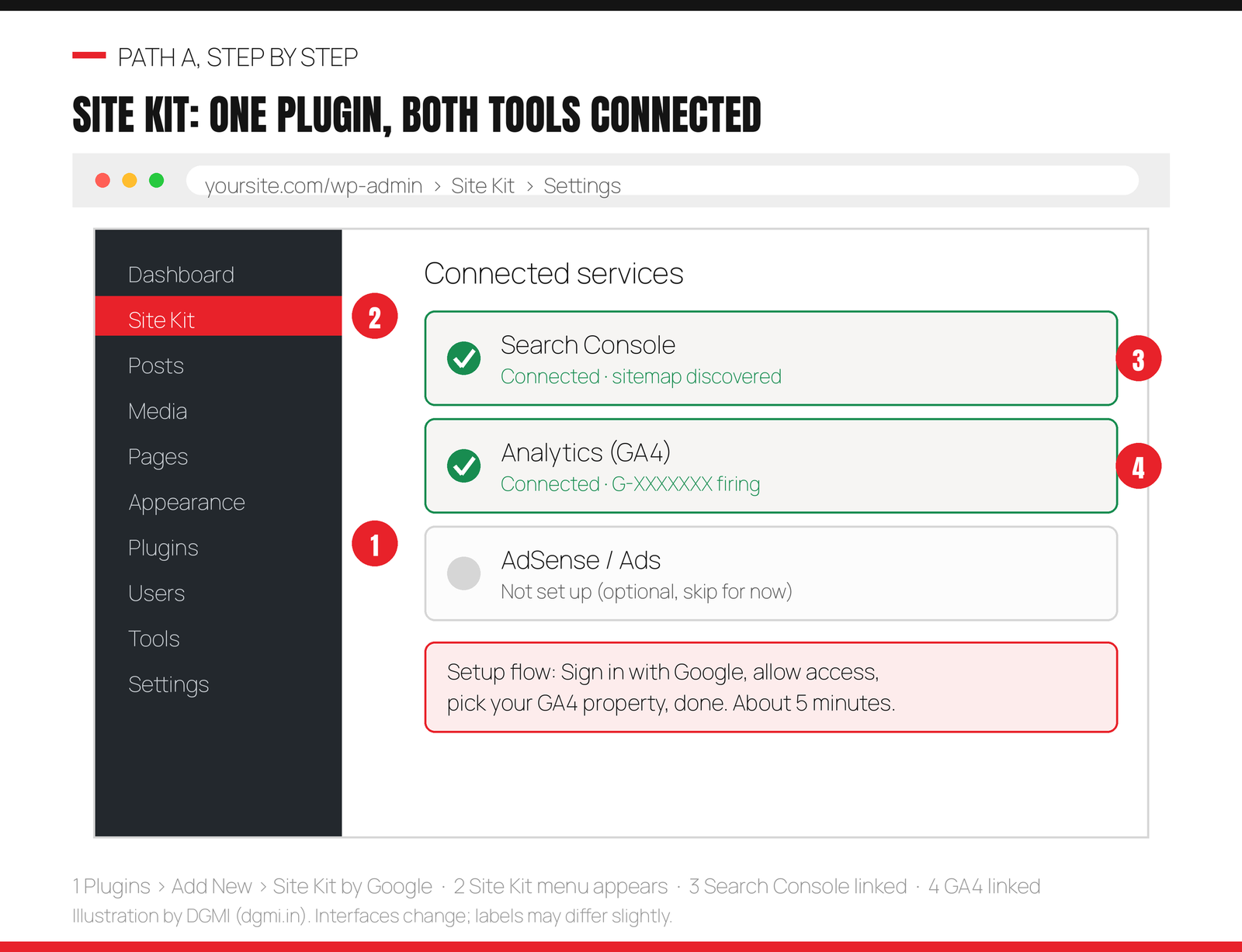
Step 1: install. Go to Plugins > Add New, search “Site Kit by Google,” and check the author is Google before clicking Install, then Activate. (Several lookalike plugins exist; the official one is by “Google” with millions of installs.)
Step 2: sign in. Click Start Setup, then Sign in with Google using the same Google account that owns your GA4 property. Allow the permissions it asks for; this is how it verifies you own the site, which is why Search Console verification happens automatically on this path with no meta tags or DNS records.
Step 3: connect Analytics. In the setup flow (or later under Site Kit > Settings > Connect More Services), choose Analytics and pick the GA4 property you created. Site Kit places the Google tag on every page for you.
Step 4: confirm. Site Kit > Settings should show Search Console and Analytics as Connected, like the illustration above. Skip AdSense and Ads for now; connecting services you do not use only adds weight. Then jump to section 7 for the sitemap and section 8 for the check that makes this setup trustworthy.
5. Path B: Your SEO Plugin + One Snippet
This path adds the least weight to your site, because half the job is done by a plugin you already run.
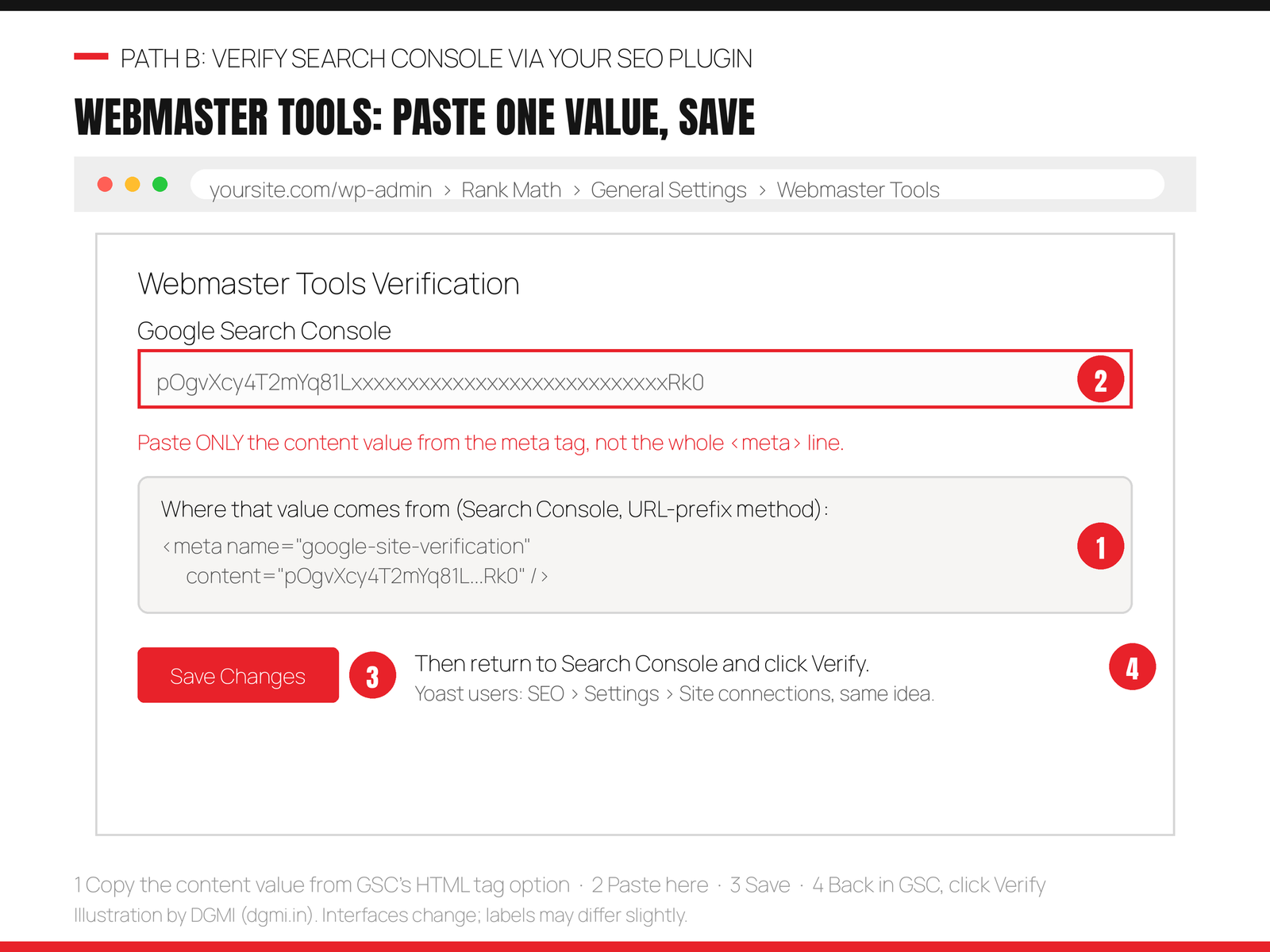
Half one: Search Console verification through Rank Math or Yoast. In Search Console, add your property using the URL prefix method and choose the HTML tag verification option. Google shows you a meta tag; copy only the long value inside content="...", not the whole line. In WordPress, go to Rank Math > General Settings > Webmaster Tools (Yoast: SEO > Settings > Site connections), paste the value in the Google field, and Save. Back in the Search Console tab, click Verify. Green tick, done, no new plugin.
Half two: the GA4 tag via one snippet. In GA4, open Admin > Data streams > your stream > View tag instructions > Install manually and copy the short gtag code block. Now place it in your site’s <head> in exactly one place: either your theme’s own custom-code hook (Astra Pro, Kadence and GeneratePress all have a “hooks” or “header scripts” area) or, on any theme, the free WPCode plugin: install it, go to Code Snippets > Header & Footer, paste in the Header box, save. That single lightweight plugin exists for precisely this job and does not phone home with your data.
The test of this path’s honesty: your site gained at most one tiny plugin, your SEO plugin did the verification it was already capable of, and nothing new appears in your admin menus demanding attention.
6. Path C: Google Tag Manager, the Pro Path
Tag Manager flips the model: instead of pasting each tool’s code into WordPress, you paste one container into WordPress, then add every current and future tag (GA4 today; WhatsApp click events next week; an ads pixel next year) inside GTM’s own interface, without touching your site again. It is the difference between rewiring your house for every new appliance and installing one power strip.
The short version for WordPress: create a free container at tagmanager.google.com, and place its two snippets (one for <head>, one for after <body>) via your theme’s hooks or WPCode’s Header and Body boxes, exactly as in Path B. Then, inside GTM, add a “Google Tag” with your G- Measurement ID, set it to fire on All Pages, Preview to test, and Publish. Search Console still verifies via your SEO plugin (previous section) or, best of all, via a Domain property with DNS verification, which covers your whole site forever.
I will not duplicate the full build here, because we have already written it with a screen for every click, including the generate_lead and whatsapp_click events that turn GA4 from a pageview counter into a lead counter: the GA4, Search Console and Tag Manager guide. If you chose Path C, finish there and return for section 8’s check. One warning for this path specifically: when GTM contains a GA4 tag, there must be no other GA4 code on the site, not in Site Kit, not in your theme, not in a snippet. GTM replaces them; it does not join them.
🎯 Watch Your First Real Data Arrive, Live
Every DGMI student installs GA4, Search Console and Tag Manager on their own website in week one, with a trainer checking the tags fire correctly, because analytics you cannot trust is worse than none. See how it feels in a 100% practical crash course class, FREE this week.
7. Verify Search Console and Submit Your Sitemap
If verification has not happened yet (Path A does it automatically; Path B did it via the SEO plugin), the strongest method is the Domain property with DNS verification: Search Console gives you a TXT record, you paste it into your domain’s DNS settings at your registrar or host, and every version of your site (http, https, www, non-www, subdomains) is covered in one property. It sounds technical; in practice it is one copy-paste into a form your host’s support can point you to in a minute.
Then submit your sitemap, the step half of beginners skip. Your SEO plugin already generates one at yoursite.com/sitemap_index.xml (Rank Math and Yoast both use this address). In Search Console, open Sitemaps in the left menu, paste sitemap_index.xml, and Submit. Status should turn to Success. This is you handing Google a map of every page you want indexed; without it, Google still finds you, but slower and less completely.
While you are there, two quick WordPress settings that undo more beginner sites than any hack: Settings > Reading, confirm “Discourage search engines from indexing this site” is unticked; and Settings > Permalinks, set to “Post name” if it is not already. Both were covered in the Astra tutorial, and both matter more than anything else on launch day.
8. The Double-Tracking Check
This is the five minutes that separates this guide from the tutorials that caused the chaos. Run it now, while the setup is fresh.
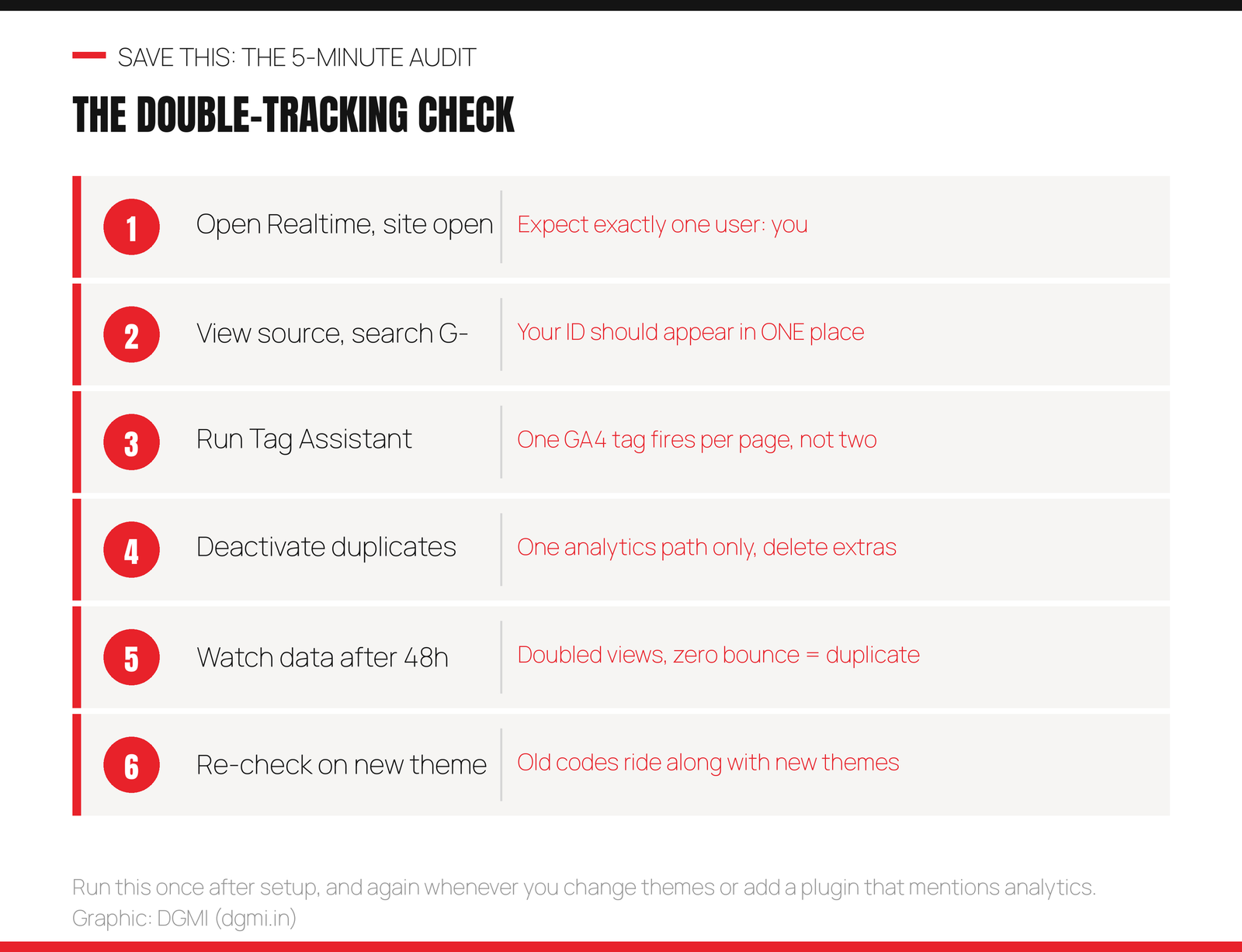
Check 1: Realtime. Open your site in one tab and GA4’s Reports > Realtime in another. Within about thirty seconds you should appear as one active user. If you see zero, the tag is not firing (re-check where you pasted it). If you somehow see more than your own visit doubled up later, suspect duplicates.
Check 2: view source. On your homepage, View Page Source, Ctrl+F for G-. Your Measurement ID should appear in one code block (or, on Path C, only inside the GTM container’s loading, with no separate gtag block). Two independent blocks with the same ID means two installs.
Check 3: Tag Assistant. Open tagassistant.google.com, connect your site, and load a page. You should see exactly one GA4 configuration tag fire. This is the same tool professionals use to debug client sites, and it is free.
Check 4: deactivate the leftovers. Anything the section 2 audit found, an old insights plugin, a theme box with an ID, a forgotten header script, gets emptied or deactivated now. Deactivated is not enough for plugins you will never use again: delete them, as unused plugins are a security surface.
Repeat the check after 48 hours of data (doubled pageviews with near-zero bounce is the classic double-tracking signature) and any time you change themes, because theme setup wizards love to helpfully re-ask for your Analytics ID.
9. Your First 48 Hours of Data (And the Lead Upgrade)
GA4’s standard reports and Search Console’s Performance report both need a day or two to populate, so do not panic at empty screens tonight. When data arrives, start with just three places. In GA4, Reports > Acquisition > Traffic acquisition answers “where do visitors come from” (Organic Search, Direct, Social, Referral). In GA4, Engagement > Pages and screens answers “what do they read.” In Search Console, Performance answers “which queries show my site, and do people click”: the single most valuable free keyword research you will ever get, and the raw material for the SEO checklist.
Then make the upgrade that most sites never make: count leads, not just visits. Send your contact form to a thank-you page and mark that page view as a key event called generate_lead; track WhatsApp button taps as whatsapp_click. On Path C this is a fifteen-minute GTM job; on Paths A and B it is the reason many sites eventually graduate to GTM. The complete walkthrough, with every screen, is in the analytics guide. A site that counts leads can prove what marketing works; a site that counts pageviews can only guess.
Worth saying plainly for the freelancers reading: this clean setup is a billable skill. “Install and verify GA4 + Search Console + GTM, submit sitemap, document the tags” is a standard line item in every website build from the cost guide’s rate card, and cleaning up a double-tracked site is its own paid job, because you now know something the site owner does not: which of their numbers are fiction.
10. 7 Mistakes That Ruin WordPress Analytics
1. Installing two paths “to compare.” The dashboards will not agree (they never perfectly do), you will trust neither, and your tags will double-fire. One path.
2. Pasting the whole meta tag into the verification field. The SEO plugin field wants only the long content value. The whole <meta ...> line fails verification and is the most common Path B support question.
3. Verifying Search Console and never submitting the sitemap. Verification proves ownership; the sitemap is the map. Two minutes, section 7.
4. Leaving “Discourage search engines” ticked. Everything verifies, GA4 works, and Google still ignores the site because a checkbox asked it to. Check it today.
5. Testing with an ad blocker on. Ad blockers block GA4. If Realtime shows nothing, try a private window with the blocker off before rebuilding your setup.
6. Tracking yourself forever. On a small site, your own daily visits distort everything. In GA4, define internal traffic for your IP (Admin > Data streams > Configure tag settings), or at minimum interpret your data knowing you are in it.
7. Setting it up and never opening it. The saddest one. Analytics is not a trophy; it is a Monday habit. Ten minutes a week in the three reports from section 9 beats a perfect setup nobody reads.

11. FAQ
How do I install Google Analytics 4 on WordPress?
Create a free GA4 property at analytics.google.com, then choose one installation path: the official Site Kit by Google plugin (one sign-in, easiest), a small gtag snippet placed in your site’s head via your theme’s hooks or the WPCode plugin (lightest), or Google Tag Manager (most powerful for future events and pixels). Verify in GA4’s Realtime report that you appear as one active user, and confirm your Measurement ID fires from only one place.
Can I add Google Analytics to WordPress without a plugin?
Yes, if your theme has a custom-code or hooks area (Astra Pro, Kadence and GeneratePress do): paste the gtag snippet from GA4’s “Install manually” instructions into the head hook. Avoid pasting directly into theme files, because a theme update can erase it. In practice, one lightweight snippet plugin like WPCode gives the same result with update-proof storage, which is why even minimalists use it.
How do I verify my WordPress site in Google Search Console?
Three good ways: automatically via Site Kit (its Google sign-in proves ownership); via your SEO plugin, by pasting the content value from GSC’s HTML tag option into Rank Math’s Webmaster Tools or Yoast’s Site connections and clicking Verify back in GSC; or, strongest, a Domain property verified with a DNS TXT record at your registrar, which covers every version of your site. Any one method is enough.
Is Site Kit by Google good, or should I use something else?
Site Kit is legitimate, official, free, and the easiest way to connect Search Console and GA4 in one flow, which makes it the right choice for most beginners. Its trade-offs are plugin weight and limited event control. If you want the lightest site, use your SEO plugin plus one snippet; if you plan serious lead tracking or ads, use Tag Manager. What matters most is choosing exactly one of the three.
Why is GA4 showing no data on my WordPress site?
The usual suspects in order: the tag was placed but you are testing with an ad blocker on (try a private window); the tag is not actually on the page (View Source, search for your G- ID); you are looking at standard reports, which take 24 to 48 hours, instead of Realtime; the wrong Measurement ID was pasted; or a caching plugin is serving old pages without the tag (clear the cache). Realtime plus Tag Assistant diagnoses all five in minutes.
How do I know if my site is double-tracking?
Signatures: pageviews roughly double your true traffic, bounce rate near zero, and engagement time oddly high. Confirm by viewing page source and searching for your G- ID (more than one block is a duplicate) and by running tagassistant.google.com (more than one GA4 config tag firing per page). Fix by keeping one path and emptying or deleting every other place the ID appears: plugins, theme options, header scripts.
Do I need Google Tag Manager if I already have GA4?
Not on day one. GA4 alone counts visits and pages. GTM becomes worth it the day you want to count things: form submissions as generate_lead, WhatsApp taps, phone clicks, or any ad pixel, because it adds all of them without editing your site again. If GTM carries your GA4 tag, remove every other GA4 install; GTM replaces them, it does not join them. Our analytics guide walks the whole build.
Does Google Analytics slow down WordPress?
The GA4 script is small and loads asynchronously, so a single clean install has minimal impact on a well-built site. What genuinely slows sites is stacking: multiple analytics plugins each loading their own scripts and dashboards. One path, plus the caching and image habits from our Astra tutorial, keeps you fast. If speed scores matter to you, that is one more argument for the snippet or GTM paths over heavier dashboard plugins.
🚀 From Clean Setup to Skills That Pay
DGMI’s 3-month Digital Marketing + AI Course (₹29,999) takes you from installing GA4 and Search Console to reading them like a marketer: SEO, GEO, ads, lead tracking and AI workflows, live and 1:1, with 9+ real projects on your own website and worldwide-recognized certification. Start with a free practical crash course class.
Questions? Contact us · hello@dgmi.in · +91 96940 03464

Sources: Google Analytics Help: set up your Google tag with Site Kit on WordPress · WordPress.org: Site Kit by Google · Google Search Console (official) · Google Tag Assistant · W3Techs: WordPress usage statistics
Keep learning: the full GA4, Search Console and Tag Manager guide · the Astra theme tutorial · the WordPress.com vs WordPress.org guide · the WordPress website cost guide · the 10 best free WordPress themes · the SEO checklist · the freelance clients guide · discuss in the DGMI Community.