
A coaching institute owner once came to me convinced Google had penalized him. Seven months live, good content, a decent Astra site his nephew built, and not one page in Google. No penalty existed. In Settings > Reading, one checkbox, “Discourage search engines from indexing this site”, was ticked, probably since installation day, and it had done exactly what it promises. Seven months of invisibility from one click nobody remembered making. After twelve years of auditing WordPress sites for clients and agencies, I can tell you his story is not rare; it is the most common one, and it has nine quieter cousins. The good news is symmetrical: these are settings, not skills. They are decided once, they take about thirty minutes to audit and fix, and this guide walks all ten with a screen for every click, plus the equally important list of settings you can stop worrying about. Fix these today, and from tomorrow your site competes on content instead of carrying handicaps.
Untick “Discourage search engines” in Settings > Reading (the single most damaging beginner setting). Set Permalinks to “Post name” on day one and never change them casually afterwards. Give your site a real title and tagline in Settings > General and make sure it loads on exactly one address (https, www or non-www). Install one SEO plugin (Rank Math or Yoast), finish its wizard, and set four toggles in Titles & Meta: attachment pages redirected, tag archives noindexed, author archive noindexed on a one-person site, and categories kept indexed. Keep categories to a handful, moderate comments, submit your sitemap in Search Console, and confirm with a site:yoursite.com search a week later. That is the whole list.
• The #1 organic result earns about 27.6% of desktop clicks and the top five capture roughly 67% of all clicks (Backlinko, 2026); a page Google cannot index earns exactly 0%
• WordPress runs about 43% of the web, so its default settings are the most consequential defaults on the internet, and several defaults are wrong for SEO
• Google’s own SEO starter guide asks for simple, descriptive URLs, which is one dropdown in WordPress, yet fresh installs still default to “plain” ?p=123 links
• Thin, duplicate-style pages (tag confetti, empty attachment pages) waste crawling and dilute a small site; four toggles remove them
• Every mistake in this guide is reversible in minutes, which is exactly why it hurts to carry them for months
1. The 30-Second Invisibility Check
Before fixing anything, find out whether you have the coaching-institute problem right now. Open Google and search site:yoursite.com (your real domain, no spaces). This special search shows only pages from your site that Google has indexed. Pages appear: you are visible, and this guide will make you competitive. Nothing appears on a site older than a few weeks: something in the next two sections is almost certainly switched wrong, and you have just found months of free traffic waiting behind a checkbox.
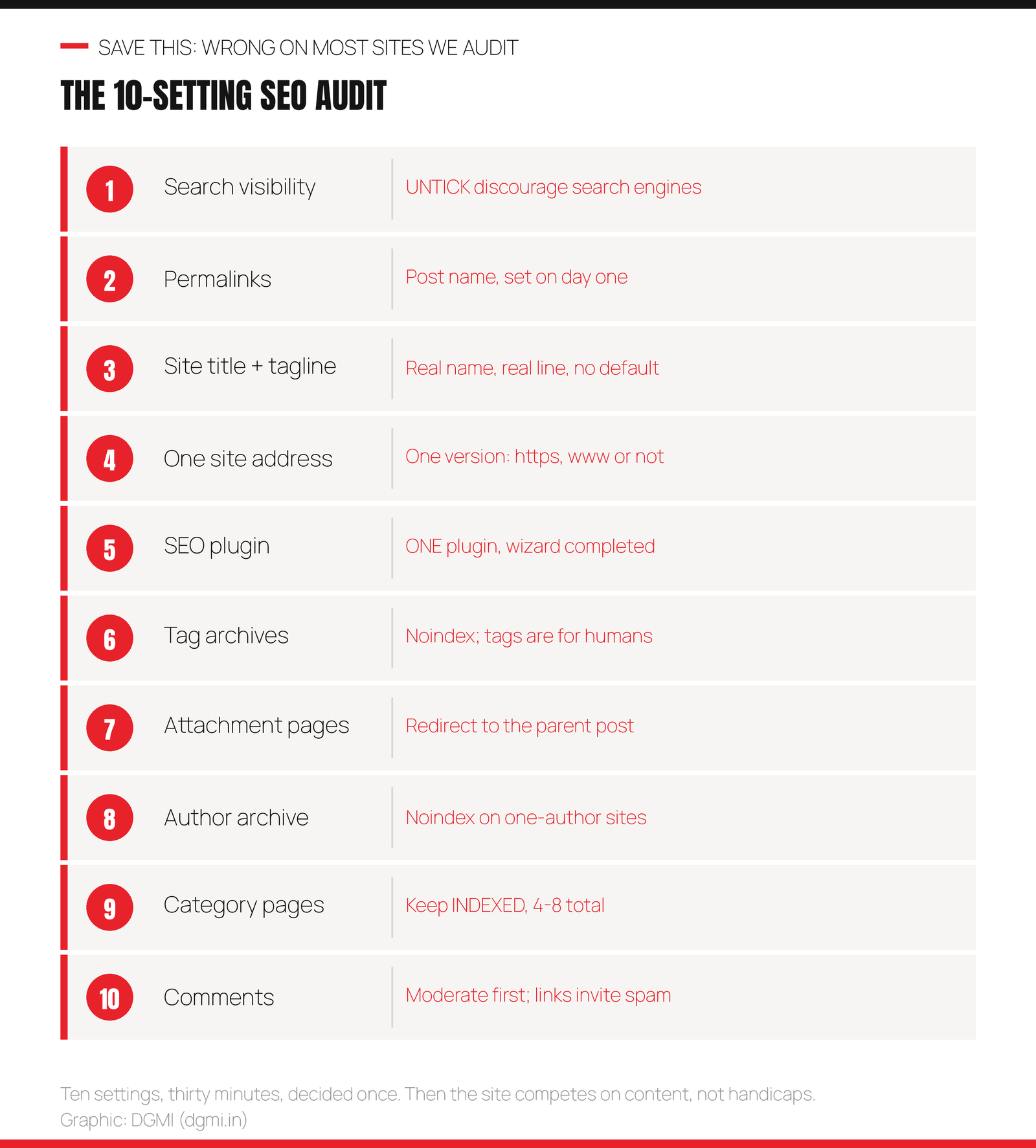
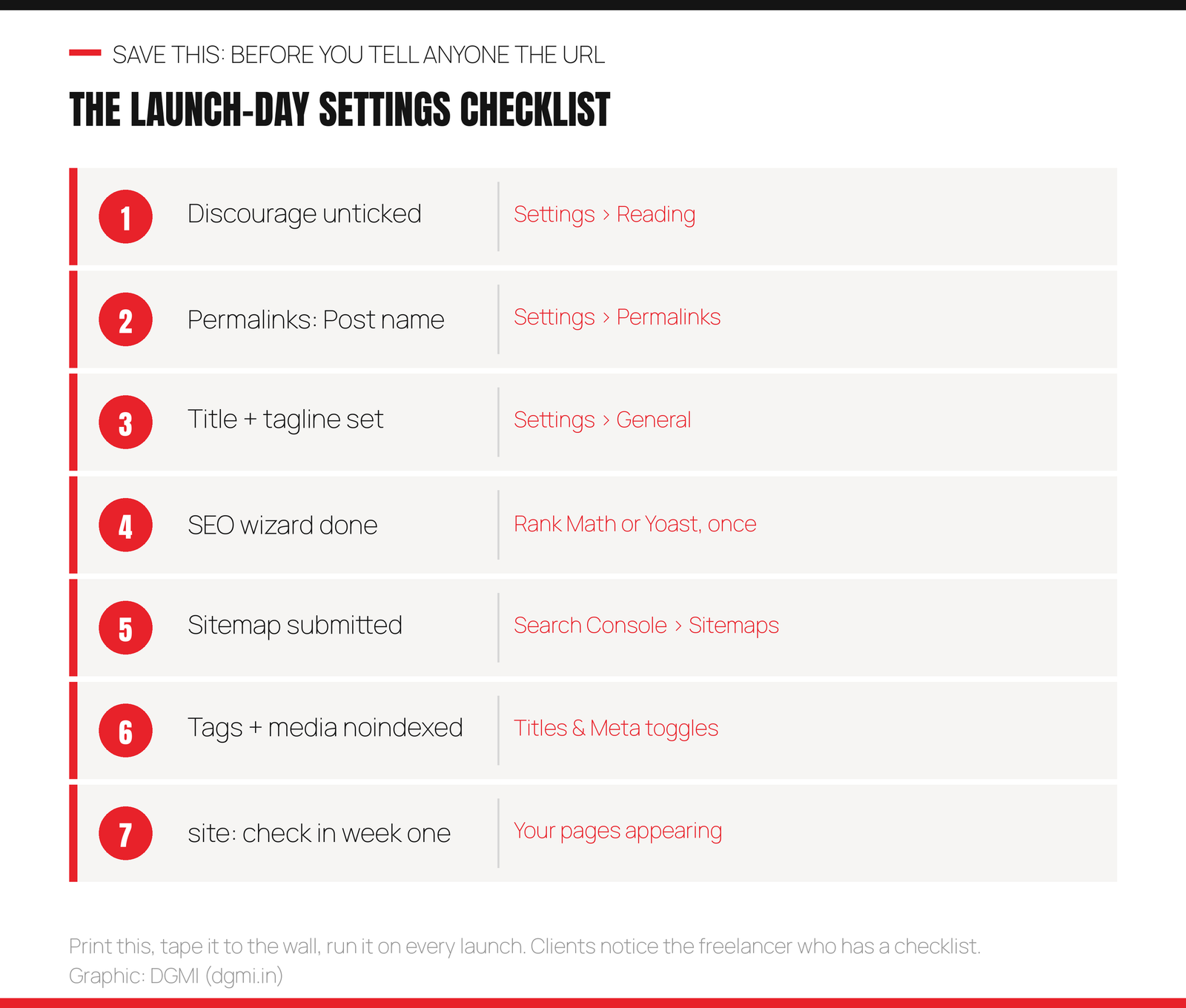
Here is the full audit we run, condensed to one card. The rest of this guide is these ten rows, explained with screens.
2. Reading Settings: The Checkbox That Hides Sites
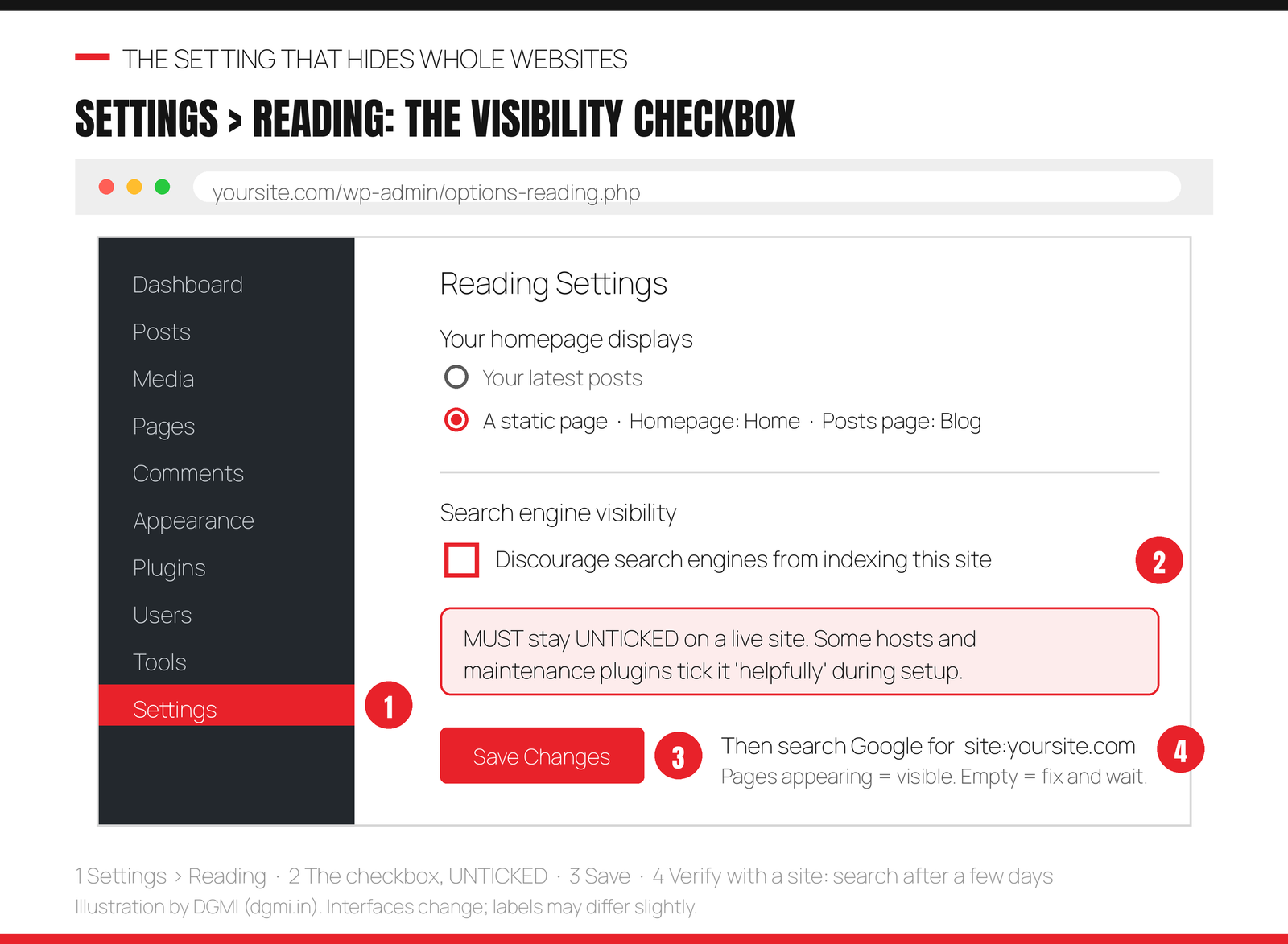
Why it gets ticked without you knowing: developers tick it while building so half-finished sites stay out of Google, some hosts and staging tools tick it during installation, and maintenance-mode plugins sometimes leave it behind. All reasonable, until launch day arrives and nobody remembers. The mistake is not ticking it; the mistake is never checking it.
The fix: Settings > Reading, confirm “Discourage search engines from indexing this site” is unticked, Save Changes. Recovery after unticking is not instant: Google re-crawls over days to weeks, and submitting your sitemap in Search Console (the two-minute job from our GA4 and Search Console guide) speeds the invitation. While you are on this screen, set “Your homepage displays” to your actual homepage (A static page) rather than latest posts, unless you are running a pure blog on purpose.
Make this checkbox a ritual: check it at launch, after every migration, and after any plugin that mentions “maintenance mode” or “coming soon.” Thirty seconds, every time, forever. It is cheaper than seven months.
3. Permalinks: Set Once, Change Never (Casually)
Permalinks are your URL shapes. A fresh WordPress sometimes ships with “Plain”: yoursite.com/?p=123, a link that tells humans and Google nothing. Google’s own SEO starter guide asks for simple, descriptive URLs, and WordPress makes that one dropdown: Settings > Permalinks > Post name, giving yoursite.com/wordpress-seo-settings/. Choose it on day one, before content exists, and this section is finished in ten seconds.
The mistake with teeth is changing permalinks later. Every URL on your site changes at once: every Google result, every WhatsApp share, every backlink now points at a page that no longer exists, and your rankings walk off a cliff while 404s pile up. If you inherit an old site with an ugly structure, the boring truth is that “leave it alone” usually beats “fix it,” and fixing it properly is a redirects project (every old URL 301-redirected to its new twin), which is professional work, not a dropdown click. This is the single most common way enthusiastic beginners destroy a working site in one afternoon; if that sentence saves one reader, this post paid for itself.
Two small sub-choices while you are here: skip the date-based structures (they make old content look stale in results and add nothing), and do not stuff the category into every URL unless you are certain your categories will never change, because changing them then changes URLs too.
4. General Settings: Title, Tagline, One Address
Site Title and Tagline (Settings > General) feed your homepage’s identity in search results, your browser tabs, and what Google shows when someone searches your brand. Launching with the default tagline, “Just another WordPress site”, is the digital equivalent of a shop sign reading “SHOP NAME HERE,” and Google displays it to the world. Title: your real name (“DGMI”). Tagline: one plain line of what you do (“Digital Marketing + AI Institute, Jaipur”). Sixty seconds.
One address, exactly. Your site can be reached as https, http, www and non-www; Google should see one canonical version and the others should redirect to it. On modern hosts this is usually configured for you (test by typing each variant and watching it land on one), and the WordPress Address / Site Address fields in this screen should both show that one https version. If variants do not redirect, your host’s support fixes it in minutes; do not edit these two fields experimentally, because a typo here locks you out of your own admin, which is a rite of passage nobody needs. While you are in General: set your timezone, so scheduled posts and analytics agree with your clock.
5. One SEO Plugin, Configured Once
An SEO plugin (Rank Math or Yoast; both free tiers are excellent) does the technical housekeeping WordPress leaves out: titles and meta descriptions, the XML sitemap, schema, canonical tags, and the noindex toggles of the next section. The beginner mistakes here are symmetrical: zero plugins (no sitemap, no control over how pages appear in results) or two plugins (Rank Math and Yoast together, each writing its own meta tags, exactly the duplicate-machinery problem we cleaned up for analytics in the no-plugin-chaos guide). One plugin. If both are installed, keep one, use its import tool to carry settings over, delete the other.
Then actually finish the setup wizard. Half the sites we audit have an SEO plugin installed and a wizard abandoned at step two, which means defaults chosen by nobody. The wizard’s questions that matter: your site type (business/blog), your logo and social profiles (feeds your brand’s appearance in results), and connecting Search Console. Skip the upsell screens freely; the free tier does everything this guide needs. And a habit, not a setting: from today, every post and page gets a deliberate SEO title and meta description in the plugin’s box before publishing, because that snippet is your ad in the results, and with the #1 spot earning 27.6% of clicks, the words on it are not decoration. What to write in them is the SEO checklist’s department.
6. What to Noindex (And What Never To)
“Noindex” tells Google “do not show this page in results.” Used well, it hides the thin, auto-generated pages WordPress creates by the dozen; used badly, it hides your money pages. Four decisions, all in your SEO plugin’s Titles & Meta area:
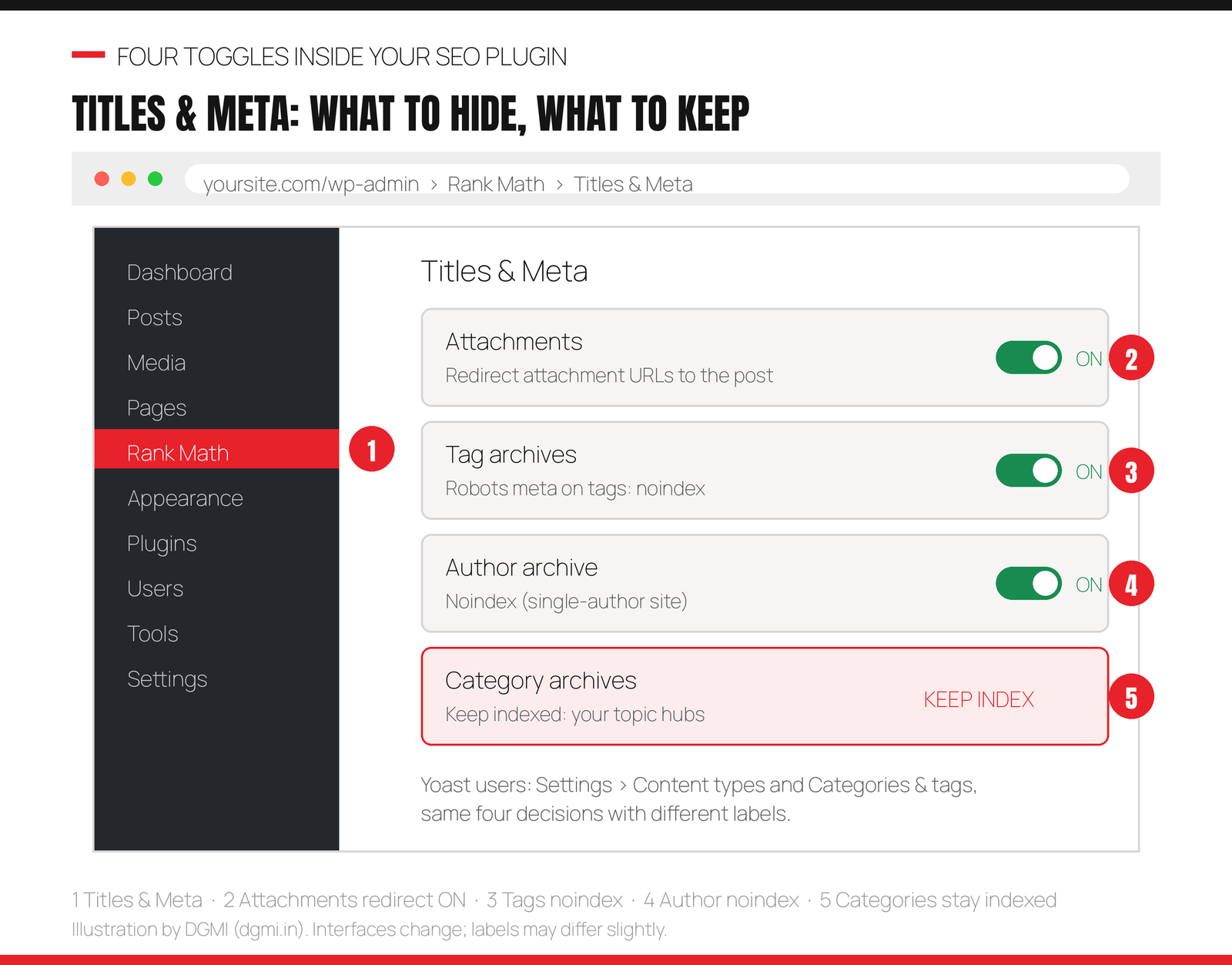
Noindex tag archives. Every tag creates a page; a site with 200 tags has 200 near-empty archive pages competing with its real content. Tags help humans browse; they do not need to be in Google. Redirect attachment pages (next section explains the disease). Noindex the author archive on a one-person site, because yoursite.com/author/you is a duplicate of your blog page; on a multi-author site, keep author pages and make them real bios, which is E-E-A-T infrastructure our E-E-A-T guide covers.
And what never to noindex: your category pages. Beginners hear “archives are thin” and hide everything, but categories, kept few and real, are your topic hubs, often ranking for the broad terms individual posts cannot. Keep them indexed, give each a line of intro text, and let them work. The panic button to know about: if a real page ever vanishes from Google, the first thing to check is whether a noindex toggle or the page-level “robots” setting got flipped, second only to the section-2 checkbox.
🎯 Get Your Settings Audited Live, Free
DGMI students run this exact audit on their own websites in week one, with a trainer confirming every toggle, then learn the SEO that makes a correctly-configured site actually rank. Experience it in a 100% practical crash course class, FREE this week.
7. Media: Attachment Pages and Photo Mistakes
The attachment-page disease: every image you upload can generate its own “page”, a URL showing just that image with no text. A 40-post site can quietly carry 300 of these, and they are the emptiest pages Google will ever see from you; occasionally one even outranks the article it belongs to, sending a visitor to a naked photo instead of your content. The cure is the toggle from section 6: redirect attachment URLs to the post (Rank Math and Yoast both offer it; modern versions often default correctly, but “often” is why we audit).
While we are in media territory, the three photo habits that count as settings-of-behavior: rename files before uploading (jaipur-coaching-institute-classroom.jpg beats IMG_20260923.jpg; the filename is a small signal and a big organizational favor), fill the alt text field on every meaningful image (accessibility first, image-search visibility second), and resize to ~1600px and compress before uploading, the speed rule from the Astra tutorial, because a fast site is an SEO setting you enforce one photo at a time.
8. Categories and Tags: Structure, Not Confetti
Categories are your site’s chapters; tags are its index entries. The beginner pattern is inverted: one default category called “Uncategorized” holding everything, plus fifteen improvised tags per post (“wordpress”, “WordPress tips”, “wp”, “website”, “websites”…), which builds precisely nothing and generates the thin archives we just noindexed.
The structure that works for almost every small site: 4 to 8 categories, named like the chapters of the book your site is (ours include SEO, WordPress, AI Marketing, Career), every post in exactly one, and each category page kept indexed with a sentence of introduction. Rename “Uncategorized” to something real today; it appears in URLs and result snippets, and it announces exactly what it says. Tags: a handful per post, reused consistently, or honestly none at all. A visitor should be able to guess your whole site’s shape from the category menu, and Google reads the same map. This chapter structure is also what makes internal linking natural, which the SEO checklist builds on.
9. Discussion Settings: Comments Without Spam
Leave comments wide open and within weeks your posts grow a beard of “Great post! Check my casino site” with links attached. Beyond looking abandoned, publishing spammy user-generated links is on Google’s spam-policy radar, the same policy family we mapped in the August 2026 spam update post, and an untended comment section is the most common way honest small sites end up hosting it.
The five-minute configuration in Settings > Discussion: tick “Comment must be manually approved” (or at minimum “author must have a previously approved comment”), enable the option to hold any comment containing links for moderation, keep the Akismet anti-spam plugin that ships with WordPress activated, and consider closing comments on posts older than 60 or 90 days, where spam concentrates and conversation rarely lives. If you never want comments at all, on a business brochure site, say, untick “Allow people to submit comments” globally and the whole topic disappears. Comments are optional; moderation, if you have them, is not.
10. Settings That Do NOT Matter (Relax)
Half of beginner SEO anxiety attaches to dials that do nothing, so let this section return some hours to your life. A “meta keywords” field: Google has ignored it for many years; if a tool still shows one, leave it empty. The plugin’s 100/100 content score: Rank Math and Yoast scores are helpful checklists, not Google’s opinion; an 82 that reads naturally beats a 100 stuffed to satisfy a meter, and chasing green lights produces exactly the robotic text our prompts library warns against. Ping lists and update services: a 2009 ritual; your sitemap does this job. Rewriting old URLs to “add keywords”: re-read section 3; the redirect risk dwarfs the keyword benefit. Category base wrangling, /blog/ prefix debates, trailing-slash philosophy: pick anything consistent and move on; consistency is the entire requirement.
The pattern behind the myths: settings are binary and finishable, so they feel productive, while content and links are open-ended, so they feel scary. But the audit above is thirty minutes precisely because settings are small. Finish them, print the launch-day card below, and spend your energy where rankings are actually won. For the freelancers reading: this same 30-minute audit, delivered as a one-page report to a local business, is the highest-conversion foot-in-the-door service in the freelance WordPress playbook, because you will almost always find something, and fixing it produces visible results fast.

11. FAQ
Why is my WordPress site not showing on Google?
Check in this order: the “Discourage search engines” checkbox in Settings > Reading (the most common cause), whether the site is simply too new (indexing takes days to weeks; submit your sitemap in Search Console to speed it), a noindex toggle in your SEO plugin covering the missing pages, and, rarely, a robots.txt block left by a developer. A site:yoursite.com search tells you the current state in ten seconds, and Search Console’s Pages report tells you why.
What is the best permalink structure for SEO?
“Post name” (yoursite.com/your-page-title/), set in Settings > Permalinks on day one. It matches Google’s guidance for simple, descriptive URLs, it is readable in results and shares, and it never goes stale the way dated URLs do. The structure itself is a small ranking factor; the large factor is never changing it casually on a live site, because every existing link and ranking points at the old URLs.
Can I change my permalinks on an existing site?
Only as a deliberate redirects project: every old URL must 301-redirect to its new equivalent, ideally mapped before the switch and tested after, so Google and existing links follow you. Done properly, rankings transfer over some weeks; done as a casual dropdown change, you create sitewide 404s and a traffic cliff. On most inherited sites, leaving an ugly-but-working structure alone is the professional choice.
Should I noindex categories and tags in WordPress?
Split decision: noindex tags (thin, numerous, made for browsing), keep categories indexed (few, meaningful topic hubs that can rank for broad terms). Add a sentence or two of intro text to each category page so it is a real page, and keep the total to roughly 4 to 8 categories. Sites that noindex everything throw away their hub pages; sites that index 200 tags dilute themselves. The middle is the setting.
Rank Math or Yoast: which should a beginner choose?
Either, singular. Both free tiers handle everything in this guide: titles, sitemap, schema basics, the four noindex/redirect toggles, Search Console connection. Rank Math bundles more features free; Yoast is older with enormous documentation. What actually damages sites is running both at once (duplicate meta tags) or finishing neither’s setup wizard. Pick one, complete the wizard, and stop comparing.
What are attachment pages and why redirect them?
WordPress can create a bare page for every uploaded image: just the file, no text. They accumulate silently (hundreds on an ordinary blog), give Google nothing but thinness, and occasionally outrank the article containing the image. One toggle in Rank Math or Yoast redirects every attachment URL to its parent post, converting dead weight into normal traffic. It is the highest value-per-click toggle in this guide after the visibility checkbox.
Does the Rank Math or Yoast score affect my Google ranking?
No. The score is the plugin’s internal checklist (keyword in title, length, links), useful as a reminder list and invisible to Google. Treat 80+ with natural writing as done; sentences contorted to reach 100 read worse to humans and gain nothing from Google. Rankings come from the page satisfying the search plus your site’s overall authority, which is content-and-links work, not a meter.
How long until Google indexes my site after I fix these settings?
Typically days to a few weeks for a small site: faster with a submitted sitemap, an internal-link structure that connects every page, and a few real mentions of your site elsewhere (your Google Business Profile, social bios). Use Search Console’s URL Inspection to request indexing for your most important pages, then judge progress at the two-to-four-week mark, not daily. If nothing appears after a month, re-run this guide’s audit; something is still switched wrong.
🚀 Settings Open the Door. Skills Walk Through It.
DGMI’s 3-month Digital Marketing + AI Course (₹29,999) starts with your website configured right, then teaches what ranks it: SEO, GEO, content, ads, analytics and AI workflows, live and 1:1, with 9+ real projects and worldwide-recognized certification. Begin with a free practical crash course class.
Questions? Contact us · hello@dgmi.in · +91 96940 03464

Sources: Google Search Central: SEO Starter Guide (URLs, indexing) · Backlinko: organic CTR by position, 2026 · W3Techs: WordPress usage statistics · Rank Math: Titles & Meta settings documentation · Google Search Central: noindex explained
Keep learning: the SEO checklist for beginners · the GA4 and Search Console on WordPress guide · the Astra theme tutorial · the 10 best free WordPress themes · the WordPress.com vs WordPress.org guide · the freelance WordPress developer roadmap · the E-E-A-T guide · discuss in the DGMI Community.